

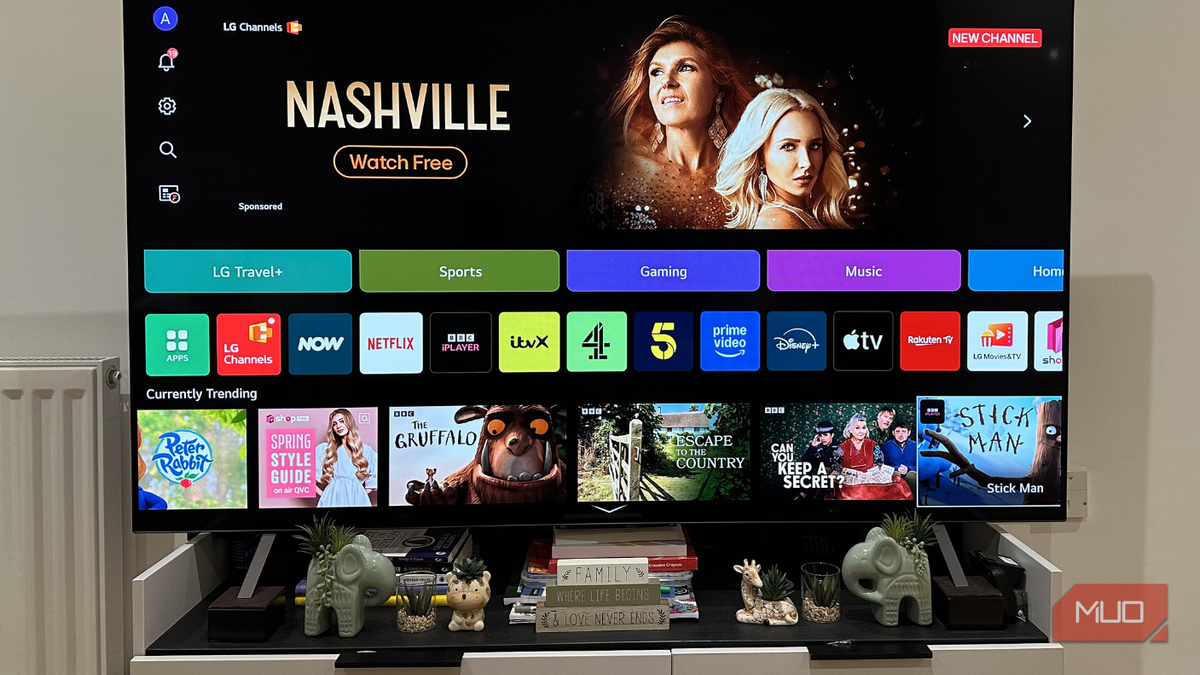
Your smart TV is essentially a data collection device that can also play Netflix and YouTube. And that’s not an exaggeration by any means. By default, your smart TV tracks what you watch, constantly uses the microphone, logs your location, and builds an ad profile that gets sold to third parties. While all of this is technically mentioned somewhere in the privacy policy, most users never read it. Fortunately, you can take control by managing the privacy settings yourself, just as I did with my Google TV.
ACR Is the First Thing to Turn Off on Any TV
Your TV Is Watching You Watch TV
If there’s one smart TV feature that invades your privacy more than anything, it’s Automatic Content Recognition (ACR). Almost every smart TV on the market has it, yet most people don’t even know it exists because it works entirely in the background. ACR detects what you’re watching on your screen—regardless of the source. Whether you’re streaming on Netflix, watching cable TV, playing a Blu-ray disc, or gaming on a PS5, the TV manufacturer can identify the exact content.
How does it work? ACR captures a snapshot of whatever appears on your screen every few seconds and compares it to the manufacturer’s database. This creates a detailed profile of what you watch, when you watch it, and how long you stay on each piece of content. That profile is then sold to advertisers. The practice came to light famously in 2017 when Vizio was caught doing exactly this and settled with the FTC for $2.2 million. Yet, nothing has changed fundamentally. Samsung, LG, Sony, Amazon (Fire TV), and Roku all run their own versions of ACR under different names. Samsung calls it “Viewing Information Services,” LG labels it “Live Plus,” and Amazon simply calls it “Automatic Content Recognition.” And crucially, all are enabled by default. The only good news is that you can turn them off in the TV’s settings menu.
To disable ACR on a Google TV or Android TV, go to Settings > Privacy > Usage & Diagnostics and turn off “Automatic Content Recognition.” On Samsung TVs, navigate to Settings > Support > Terms & Privacy > Viewing Information Services and disable it. On LG, go to Settings > All Settings > General > Live Plus and toggle off. On Roku, head to Settings > Privacy > Smart TV Experience and uncheck “Use info from TV input.” On Fire TV, go to Settings > Preferences > Privacy Settings > Device Usage Data and disable “Collect App and Over-the-Air Usage Data.”
Your TV Doesn’t Need Access to Microphone, Camera, and Location Services
Less Access Means Less Data Collection
Let’s be honest: your TV is just a display. Its primary job is to show content. Why would you ever give it 24/7 access to a microphone, camera, and location? I understand that microphone access is needed for built-in voice assistants or voice search, but the privacy trade-off is huge. Your TV is always listening—that’s how always-on detection works. Personally, I would rather give up voice input and the built-in assistant for peace of mind.
Cameras on TVs are less common, but if yours has one, you probably rarely use it. Most of the time it faces the couch, passively monitoring the room. A physical shutter is the best defense; if none exists, a piece of electrical tape works just as well. It may not look elegant, but it’s highly effective.
Location access is the least useful. You’re not checking maps or weather on your TV. Yet manufacturers use it to estimate where you live and serve location-based ads. To disable these, go to Settings > Privacy on most TVs. On Google TV, under Privacy > Location, set it to “Off.” Disable microphone access by going to Settings > Apps > See all apps > Show system apps > Google Assistant > Permissions and deny microphone. For cameras, look for a camera app or toggle in privacy settings; if not, use tape.
Resetting Advertising ID and Switching to a Private DNS Can Help Too
Not the Most Exciting Settings, but Still Important
Every smart TV is assigned a unique advertising ID—a tracking identifier that advertisers use to build profiles on you. Resetting it forces the TV to generate a new ID, erasing the data collected so far. On Android TV, go to Settings > Privacy > Ads and select “Reset advertising ID.” On Fire TV, go to Settings > Preferences > Privacy Settings > Interest-Based Ads and reset. On Roku, go to Settings > Privacy > Advertising and choose “Reset Advertising Identifier.”
Another powerful privacy tweak is changing your DNS server. By default, your TV uses the DNS assigned by your ISP, meaning your ISP can see every domain your TV contacts—including ad servers and analytics endpoints. Switching to a third-party DNS like Cloudflare (1.1.1.1) or Quad9 (9.9.9.9) removes that visibility. Some DNS services even block ads and trackers. To change DNS on Android TV, go to Settings > Network & Internet > Wi-Fi or Ethernet > IP settings and choose “Static.” Leave the IP address and gateway as they are, then enter your preferred DNS addresses in the DNS 1 and DNS 2 fields. For example, use 1.1.1.1 and 1.0.0.1 for Cloudflare.
Beyond these settings, consider disabling ad tracking altogether. On Google TV, under Privacy > Ads, there is an option to opt out of “interest-based ads.” Similarly, on Fire TV, you can disable “Interest-Based Ads.” While this doesn’t stop data collection entirely, it limits the use of your data for personalized advertising.
Additional Privacy Steps for Total Peace of Mind
Block Trackers at the Router Level
If you want to go even further, configure your home router to block known ad servers and trackers. Many routers support custom DNS or allow you to use services like NextDNS or Pi-hole. These tools filter out requests to tracking and ad domains before they reach your TV. This method covers not only the TV but all devices on your network. While it requires some technical setup, the privacy gains are substantial.
Another consideration is using a VPN on your TV. Some smart TVs support VPN apps, but many do not. If your TV doesn’t, you can set up a VPN on your router to encrypt all traffic from the TV. This prevents your ISP from seeing which streaming services you use, though it doesn’t stop the TV manufacturer from collecting data via its own software. Combining a VPN with the privacy settings above provides a layered defense.
Finally, consider the apps you install on your TV. Many free streaming apps are laden with trackers. Stick to well-known services and avoid sideloading unknown apps. Periodically review your installed apps and remove any you no longer use. Also, keep your TV’s firmware updated; manufacturers occasionally patch privacy vulnerabilities, though they rarely add new privacy controls.
In the end, the biggest privacy leak in your living room may well be the TV itself. But with a few deliberate settings changes, you can significantly reduce the amount of data your TV leaks to advertisers and other third parties. From disabling ACR and denying microphone access to resetting your advertising ID and using a private DNS, each step adds a layer of protection. Start with the defaults you can change today, and build from there.
Source: MakeUseOf News