

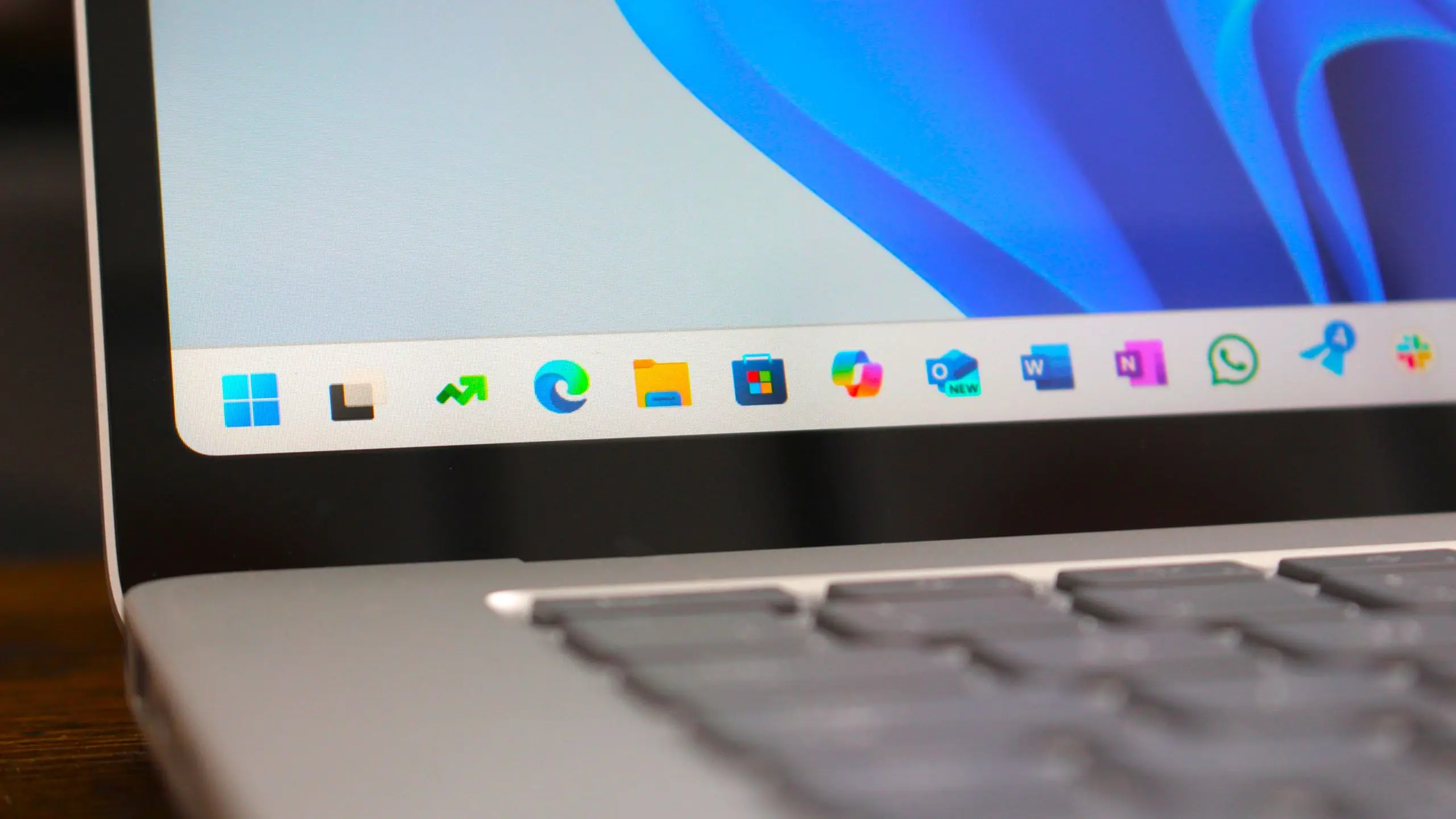
Windows 11 arrived with a fresh design, improved performance, and a handful of new features. Among the most touted additions were Snap Layouts, a revamped window management system that lets users quickly arrange windows into predefined grids. But for many power users and developers, Snap Layouts feel like a step in the right direction that still falls short of what's possible with third-party tools. One tool in particular, FancyZones—part of Microsoft's own PowerToys suite—offers a level of customization and efficiency that should be built directly into the operating system.
The Problem with Snap Layouts
Windows 11's Snap Layouts are a significant improvement over earlier versions of Windows. Dragging a window to the top of the screen brings up a menu of layout options, including side-by-side, three-column, and quadrant arrangements. It's simple and works well for basic multitasking. However, it lacks flexibility. Users are limited to a handful of preset layouts, and there's no way to create custom zone arrangements or adjust individual zone sizes. This rigidity can be frustrating for professionals who rely on specific window placements—for example, a developer who wants a large code editor on the left and multiple smaller terminal windows on the right.
Moreover, Snap Layouts don't allow windows to overlap or snap to edges outside the grid. They also don't support multiple monitors seamlessly. While you can snap windows manually using keyboard shortcuts or drag-and-drop, it's not as efficient as having a dedicated zone editor.
What FancyZones Offers
FancyZones, available since the early days of PowerToys for Windows 10 and now updated for Windows 11, addresses these limitations head-on. It allows users to create custom, complex window layouts by dragging zones onto the screen. These zones can be any size or shape, and users can assign windows to zones by holding Shift while dragging. The most powerful feature is the ability to save multiple zone sets for different monitor configurations or tasks. For instance, a user might have a single large zone for coding, a three-column layout for research, and a five-zone grid for data analysis. Switching between layouts is quick, either via a system tray icon or a keyboard shortcut.
FancyZones also includes some advanced features that boost productivity. For example, it can override the default Windows snap shortcuts, allowing users to quickly move windows between zones. It also respects multiple monitors and DPI scaling, and it offers an option to highlight zones when windows are dragged near them. This makes window arrangement both powerful and intuitive.
Why Windows 11 Should Absorb FancyZones
Microsoft has a history of incorporating popular third-party features into its operating system. The Task Manager refresh, virtual desktops, and even the Windows Subsystem for Linux are examples of features that started as external tools or requests. Given that PowerToys is an official Microsoft product, it makes even more sense to integrate FancyZones directly into Windows 11. The benefits are numerous:
1. Wider Accessibility
Not every user knows about PowerToys or is willing to install it. Many casual users are unaware of the productivity gains available. By making FancyZones a native feature, Microsoft would ensure that every Windows 11 user—from corporate IT to home office workers—can take advantage of advanced window management without extra steps.
2. Performance and Integration
A built-in solution would be more tightly integrated with the operating system, potentially offering better performance and fewer compatibility issues. Currently, PowerToys runs as a background task; integrating it into the OS would reduce resource overhead and allow deeper integration with other Windows features like Task View and Snap Assist.
3. Customization for Power Users
Power users, especially in fields like software development, data analysis, and content creation, need flexible window layouts that adapt to their workflow. FancyZones makes this easy, and its inclusion would position Windows 11 as a serious productivity platform for professionals.
4. Consistency Across Devices
Many users work across multiple machines—desktop, laptop, and tablet. With FancyZones built-in, they could sync their layout settings via a Microsoft account, ensuring a consistent experience regardless of device. Syncing is more reliable than relying on separate third-party app configurations.
Potential Drawbacks and Considerations
Of course, there are challenges to integrating FancyZones into Windows 11. The first is the complexity of the user interface. Snap Layouts are designed to be simple and approachable for all users, whereas FancyZones has a steeper learning curve. Microsoft would need to design a UI that reveals advanced options gradually, perhaps through a settings panel rather than the simplified Snap Layouts popup. They could also add a toggle to switch between the basic Snap Layouts and the full FancyZones editor.
Second, there's the question of maintenance. PowerToys is maintained by a dedicated team that releases updates frequently. Integrating a tool into the OS means it would be tied to Windows 11's feature updates and might not change as rapidly. However, given that FancyZones is mature and stable, this is less of a concern.
A Historical Precedent
Microsoft has incorporated features from its own tools before. For example, the original Windows 10 PowerToys included a tool called "Color Picker" that later became part of the Snipping Tool. Similarly, "PowerToys Run" influenced the redesign of the Windows Search. FancyZones would be another logical step. Apple has done the same with macOS—taking ideas from apps like BetterSnapTool and integrating them into the multitasking features of later OS versions.
The potential impact on productivity should not be underestimated. Studies have shown that efficient window management can save users minutes per day, which adds up over a year. For professionals who spend hours interacting with multiple applications, even small improvements in layout speed translate to significant gains.
What Microsoft Could Do
Ideally, Windows 11 would include a built-in zone editor accessible from the Task View or the Snap Layouts menu. It should allow users to create, rename, and delete zone sets, and assign keyboard shortcuts to switch between them. Additionally, the zones should be aware of high-DPI displays and different screen sizes, just as FancyZones is today. Microsoft could also add a "Zone Set Gallery" where users can share or download layouts from the community.
Another possibility is to integrate FancyZones directly into the Windows 11 settings app under "Multitasking". There, users could enable advanced zone management and configure options. This would keep the simple Snap Layouts for novices while providing the power users crave.
Conclusion
Windows 11 has made strides in window management, but it still has room for growth. FancyZones from PowerToys represents the missing piece—a feature that elevates the productivity of the operating system to match the demands of modern multitasking. By bringing FancyZones natively into Windows 11, Microsoft would not only satisfy power users but also help the casual workforce discover efficient workflows they never knew existed. It's a natural progression for an OS that prides itself on being the most productive version of Windows yet.
As Windows 11 continues to evolve with updates like the Moment series, there is hope that Microsoft will listen to user feedback and make this integration a reality. Until then, users will have to rely on PowerToys—a useful tool, but one that should ultimately become part of the Windows DNA.
Source: Windows Central News